


+86-13826948503 (Bella)
+86-18145725878 (Carven)

Author: Site Editor Publish Time: 2025-08-20 Origin: Site

Have you ever thought about how many usb ports your motherboard has? You can find out by looking up your motherboard model. You should also read the manual that comes with it. Knowing where the USB ports are and what types they are is important. This helps you connect all your devices without any problems.
You make sure your devices work together.
You get the right speed for moving data.
You can set up special equipment without trouble.
If you need more places to plug in, you can use a usb hub for motherboard. This gives you more ways to connect things. At Huamao Electronics, we make strong connectors and wire harnesses. We want to help you connect your devices easily.
Look at your motherboard’s manual or search its model online to see how many USB ports you have.
You can tell USB port types by their color. Blue means USB 3.0. Black or white means USB 2.0.
If you need more ports, use a USB hub. It gives you extra places to plug in devices.
You can also put in a USB expansion card. This adds more ports inside your computer.
Always check your motherboard, read the manual, and use software tools. This helps you count your USB ports correctly.
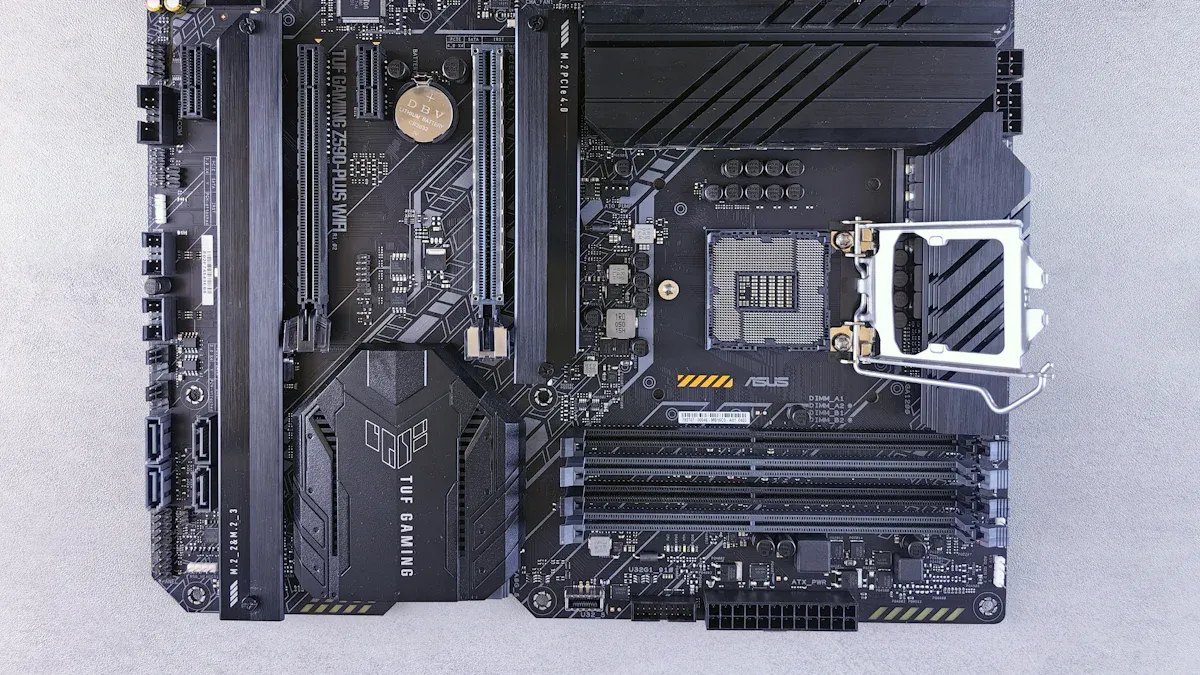
If you want to know how many usb ports your motherboard has, you can use a few simple steps. You can check both the physical board and the official documentation. This helps you connect all your devices and plan for future upgrades.
You can follow these steps to find the exact number of usb ports:
Physical Inspection: Look at your motherboard. If it is not inside a case, count each port on the back panel. Also, look for connectors that attach to the front panel of your computer case.
Check the Manual: Find your motherboard’s manual. The manual lists every port and connector. You can also find this information on the manufacturer’s website by searching for your motherboard model.
Use Windows Device Manager: On your computer, open Device Manager. Expand the "Universal Serial Bus controllers" section. Count the devices listed. This shows the number of active usb ports.
Check Online Specifications: Search for your motherboard model online. Manufacturer websites and online stores often list the number and types of usb ports.
Tip: Always use a combination of physical inspection, software tools, and the manual to get the most accurate count.
Motherboards usually have between 4 and 10 usb ports. The exact number depends on the model, the chipset, and the form factor. The chipset controls how many usb ports the board can support. The form factor, such as ATX or Micro-ATX, affects how many ports fit on the board.
When you look at your motherboard, you will see different types of usb ports. Each type has its own color and shape. This helps you know which port is which.
Characteristic | USB 2.0 | USB 3.0 | USB-C |
|---|---|---|---|
Connector Color | Black or White | Blue | Varies (often white) |
Number of Pins | 4 | 9 | Varies |
SS Symbol | No | Yes | N/A |
Cable Thickness | Thinner | Thicker | N/A |
You can also use these color codes to identify the ports:
USB Type | Color Code |
|---|---|
USB 1.0 and 2.0 | White or Black |
USB 3.0 | Blue |
USB 3.1 | Teal Blue |
USB Sleep-and-Charge | Yellow, Orange, or Red |
Some ports have special logos or symbols. For example, USB 3.0 ports often have an "SS" (SuperSpeed) symbol. USB 2.0 ports do not have this symbol.
USB Version | Logo | Max Speed | Data Transfer | Audio | Video | Power Delivery |
|---|---|---|---|---|---|---|
USB 2.0 (HighSpeed) | Trident symbol only | 480 Mbps | ✓ | X | X | X |
USB 3.2 Gen 1 (SuperSpeed 5 Gbps) | SS + 5 | 5 Gbps | ✓ | ✓ | ✓ | X |
USB 3.2 Gen 2 (SuperSpeed 10 Gbps) | SS + 10 | 10 Gbps | ✓ | ✓ | ✓ | X |
USB 3.2 Gen 2x2 (SuperSpeed 20 Gbps) | SS + 20 | 20 Gbps | ✓ | ✓ | ✓ | X |
USB 3.2 Gen 2 w/ PD (5 Gbps) | SS 5 + battery | 5 Gbps | ✓ | ✓ | ✓ | ✓ |
USB 3.2 Gen 2 w/ PD (10 Gbps) | SS 10 + battery | 10 Gbps | ✓ | ✓ | ✓ | ✓ |
USB4 (20 Gbps) | Circle + 20 | 20 Gbps | ✓ | ✓ | ✓ | ✓ |
USB4 (40 Gbps) | Circle + 40 | 40 Gbps | ✓ | ✓ | ✓ | ✓ |
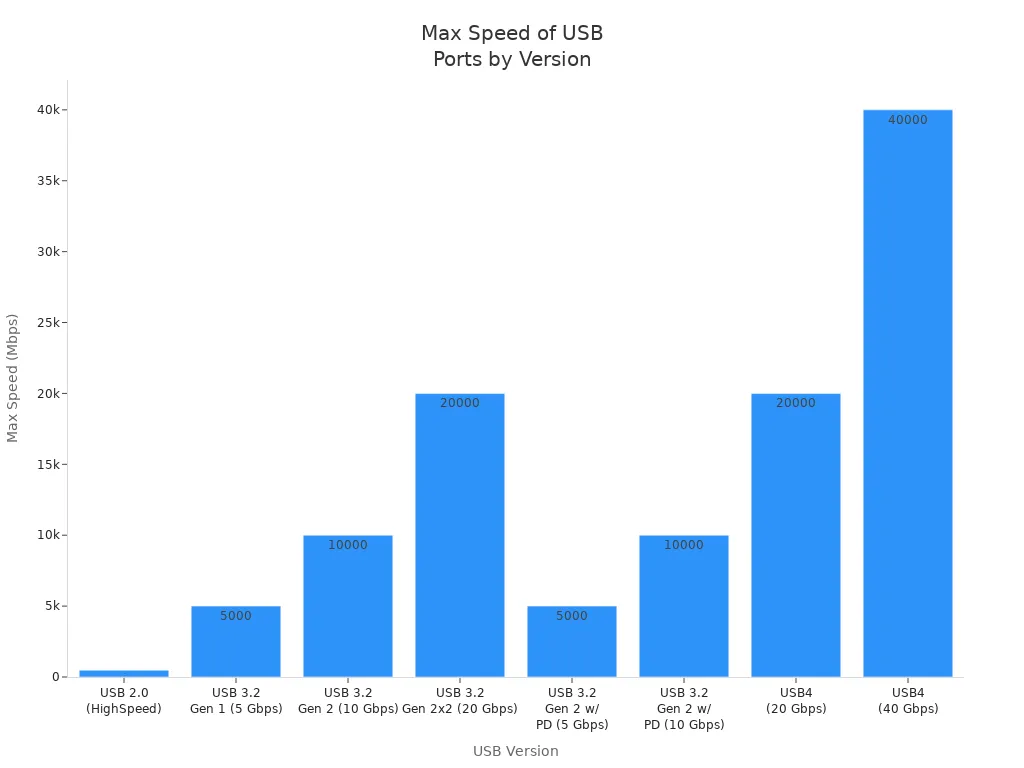
Note: The manual gives you the most reliable information about your motherboard usb port count and types. Always check the manual or the manufacturer's website for the latest details.
Motherboard manufacturers often list usb ports in the manual like this:
USB 2.0 – For keyboards, mice, and low-speed devices.
USB 3.x – For fast data transfer and external storage.
USB-C – For reversible connections and fast charging.
Front Panel USB Headers – For connecting the case’s front or top usb ports.
If you want to make sure your count is correct, use all these methods together. Look at the board, check the manual, and use software tools. This way, you will know exactly how many usb ports you have and what each one does.
You may wonder where to find all the usb ports on your motherboard and what each one does. Understanding the types of usb ports and their locations helps you connect your devices the right way. You can also make sure you get the best speed and power for your needs. As a team at Huamao Electronics, we have deep experience in connectors, cable assemblies, and wiring harness solutions. Let’s look at the main places you will find usb ports and how they work.
You will find most usb ports on the back of your computer. These are called rear usb ports. They connect directly to the motherboard and are easy to spot. Rear usb ports come in different shapes and colors. Each type has its own speed and use.
Here is a quick look at the main types of usb ports and their speeds:
USB Standard | Maximum Transfer Speed | Ideal Use |
|---|---|---|
USB 1.0 | 1.5 Mbps | Low-speed devices |
USB 1.1 | 12 Mbps | Low-speed devices |
USB 2.0 | 480 Mbps (60 MB/s) | Everyday tasks |
USB 3.0 | 5 Gbps (625 MB/s) | High-speed data transfers |
USB 3.1 | 5 Gbps | High-speed data transfers |
USB 3.2 | 10 Gbps | High-speed data transfers |
You can see that newer rear usb ports, like USB 3.2, offer much faster speeds than older ones. This helps you transfer large files quickly or use fast external drives.
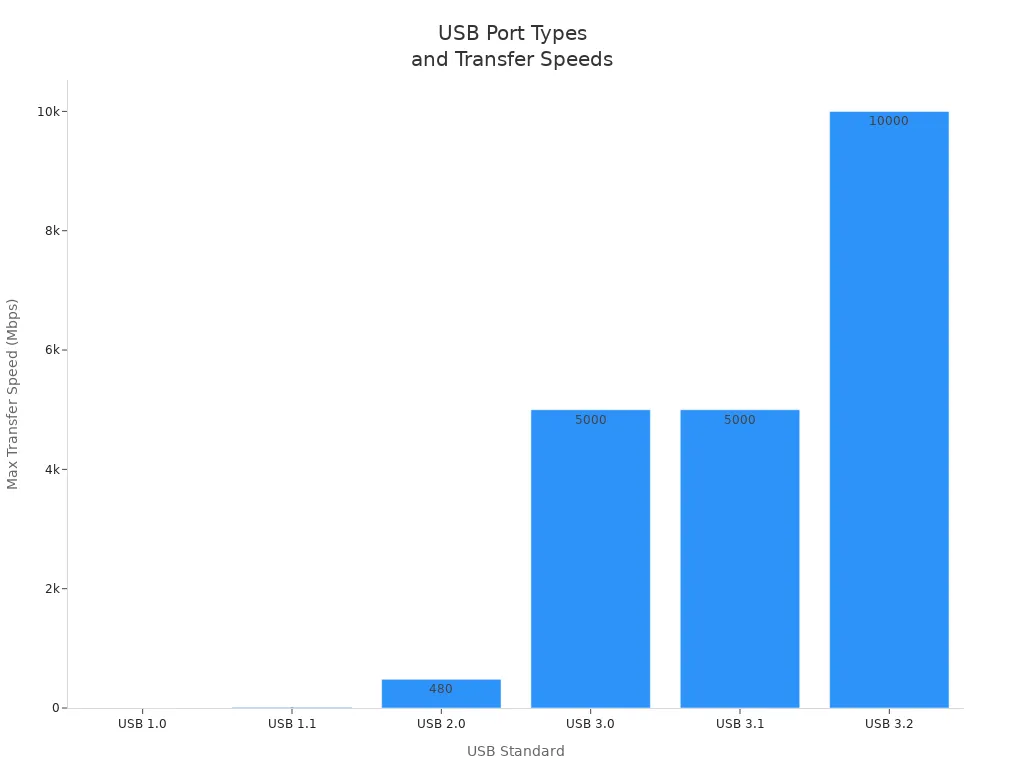
Tip: Look for blue or teal ports for the fastest speeds. These are usually USB 3.x or USB 3.2.
You will also find usb ports on the front or top of your computer case. These are called front panel usb ports. They make it easy to plug in flash drives, phones, or other devices without reaching behind your computer. The front panel usb ports connect to the motherboard using special cables and connectors.
You may see different types of usb ports here, such as USB 2.0, USB 3.0, or even USB-C. The types of usb ports on the front panel depend on your case and motherboard specifications. At Huamao Electronics, we design cable assemblies and wiring harness products that help connect these front panel usb ports to your motherboard safely and reliably.
Inside your computer, you will find usb headers on the motherboard. These usb headers are pin connectors that let you add more usb ports, usually for the front panel or special devices. You cannot plug a device directly into a usb header. Instead, you use a cable or wiring harness to connect the header to a usb port on your case.
Here is a table showing the difference between internal usb headers and external usb ports:
Feature | Internal USB Headers | External USB Ports |
|---|---|---|
Location | Inside the computer's motherboard | On the exterior of the computer |
Connection Type | Pin-based connection | Standard USB plug connection |
Functionality | Handles power and data flow for multiple ports | Directly connects to USB devices |
You can use internal usb headers to add more front panel usb ports or connect special devices like card readers. If you need custom solutions, we at Huamao Electronics can help with terminal connector and cable assembly products that fit your needs.
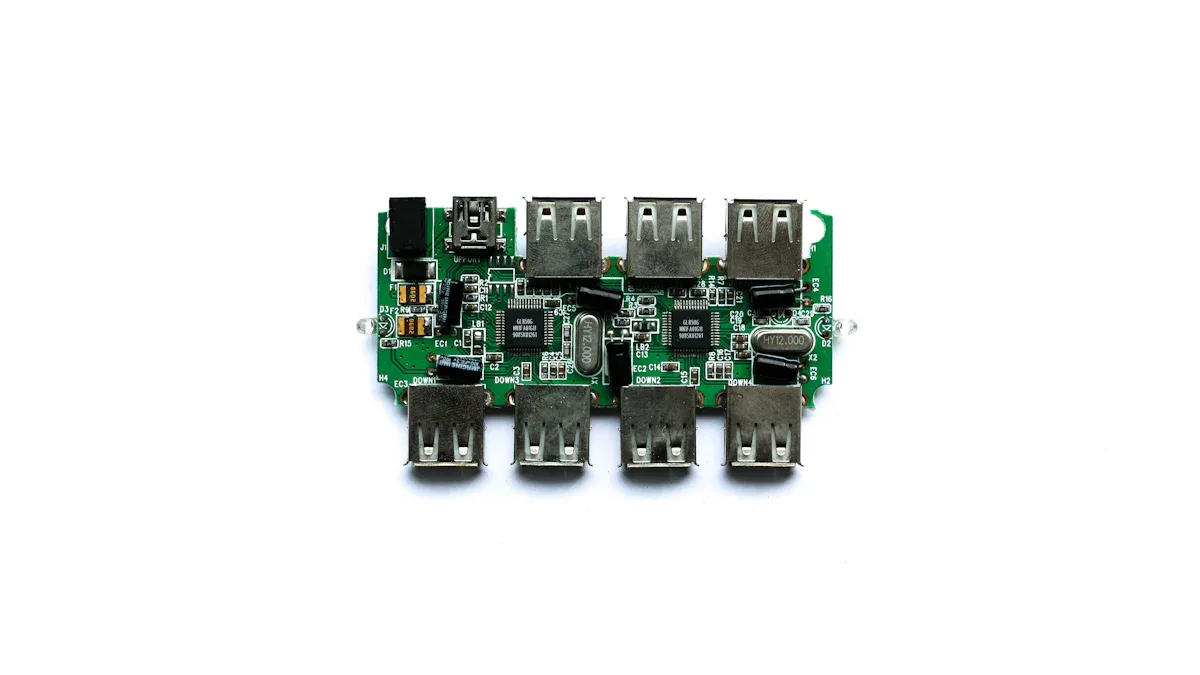
Do you need more usb ports for your computer? Many people run out of places to plug in things like keyboards, printers, and drives. You can fix this by using a usb hub for motherboard or by adding expansion cards. Let’s look at both choices so you can pick what works best for you.
A usb hub for motherboard lets you plug many devices into one port. You connect the hub to a usb port, and it gives you more spots for your stuff. There are powered hubs and unpowered hubs. Powered hubs use their own power plug. Unpowered hubs get power from your computer.
Here is a table that shows how powered and unpowered usb hubs are different:
Feature | Powered USB Hub | Unpowered USB Hub |
|---|---|---|
Power Source | External power adapter | Computer’s usb port |
Device Compatibility | High-power devices (external drives, printers) | Low-power devices (keyboards, mice) |
Number of Devices | Many devices without performance loss | Limited by computer’s power |
Port Charging Capability | Can charge devices when computer is off | Cannot charge devices effectively |
Power Requirements | Needed for consistent power | Not for high-power devices |
Pick a powered usb hub for motherboard if you use things that need a lot of power. Unpowered hubs are good for simple things like a mouse or keyboard. The table below shows the limits for usb 2.0 and usb 3.0 hubs:
Aspect | USB 2.0 Limit | USB 3.0 Limit |
|---|---|---|
Data Transfer Speed | 60MB/s | 640MB/s |
Power Supply | 500mA | 900mA |
Device Suitability | Low power | High power |
Some popular hubs are the Anker 341 USB C 7-in-1, Hiearcool USB-C 7-in-1, and Atolla Powered USB Hub. These hubs work well and have extra features for gamers and people who use lots of devices.
You can also get more usb ports by putting in a USB expansion card. This card goes into a slot on your motherboard and gives you more places to plug in. Here are the steps to add an expansion card:
Find the right slot on your motherboard.
Take off the metal cover from your computer case.
Put the expansion card into the slot.
Hold the card in place with screws.
Install drivers if you need them.
USB expansion cards help share speed between devices. Your computer gives speed to the first device that asks. If one device uses too much, others might not work well. Make sure the card works with your motherboard and chipset before you buy it.
Some problems can happen, like not enough power, BIOS issues, or chipset problems. Some motherboards use more than one chipset for usb 3.0, which can make usb 2.0 devices not work right. Always check that your CPU, RAM, and GPU work with your motherboard.
If you need something special, we at Huamao Electronics can help with wiring harness, cable assembly, and terminal connector products. Our team can help you make the right cable or connector for your usb hub for motherboard or expansion card. We care about quality and want you to get the best results.
Need help picking the right usb hub for motherboard or expansion card? Contact us at Huamao Electronics. We give expert advice and custom cable solutions for every need.
You can figure out how many USB ports you have by doing a few things. First, look at the back and front of your computer to see the ports. Next, read your motherboard manual to learn about each port. You can also use computer programs to double-check the number of ports.
If you want more ports, you can use powered USB hubs or PCIe cards. Always pick good cables and keep your devices safe so they last longer.
Why choose Huamao Electronics? | What we offer |
|---|---|
Custom solutions | USB, Micro USB, Type-C cables, support |
Expert team | Professional design and quality |
Reach out to us if you need special cables or connectors!
You can count the ports on the back and front of your computer. You can also check your motherboard manual or look up your model online. This gives you the most accurate number.
USB 2.0 ports work for basic devices like keyboards. USB 3.0 ports transfer data much faster. USB-C ports are reversible and support fast charging. You get better speed and power with newer ports.
Yes, you can use a USB hub or install a USB expansion card. A hub lets you connect more devices. An expansion card adds extra ports inside your computer.
Manufacturers use colors to show port types. Blue means USB 3.0. Black or white means USB 2.0. Yellow or red often means charging ports. You can use these colors to pick the right port.
Our team at Huamao Electronics can help you design and build custom USB cables, connectors, and wire harnesses. We offer expert advice and quality solutions for your needs.
