


+86-13826948503 (Bella)
+86-18145725878 (Carven)

Author: Site Editor Publish Time: 2025-06-30 Origin: Site

Are you tired of unreliable Wi-Fi? Ethernet cables provide a more stable and faster connection for your home network. Unlike Wi-Fi, Ethernet offers low latency and higher speed, making it perfect for stationary devices.In this article, we’ll show you how to run Ethernet cable through your house, step-by-step, for a seamless connection. You’ll also learn about the advantages of using Ethernet over Wi-Fi.
Running Ethernet cables through your house offers several key benefits, especially if you rely on a stable and fast internet connection. Unlike Wi-Fi, which can experience signal drops or interference, Ethernet provides a direct, wired connection, ensuring consistent speeds and reliability.
Reliable and Fast Internet Connection: Ethernet delivers superior speed, especially for activities like gaming, streaming, and video conferencing, without the interruptions often associated with Wi-Fi.
Reduced Interference and Latency: Ethernet avoids the interference caused by walls or other wireless devices. Unlike Wi-Fi, which can be affected by microwaves or thick walls, Ethernet remains stable.
Ideal for Stationary Devices: For devices like gaming consoles, smart TVs, and desktop PCs, a wired Ethernet connection is perfect. These devices require high-speed, consistent internet for an optimal experience, and Ethernet is the best way to achieve this.
While Wi-Fi has its place, Ethernet outshines it in many areas, especially when it comes to speed and reliability.
Speed Comparison between Ethernet and Wi-Fi:
Ethernet can handle speeds of up to 10 Gbps, making it ideal for high-bandwidth activities like 4K streaming or online gaming.
Wi-Fi, while fast, tends to slow down when multiple devices are connected or when there’s a weak signal.
| Connection Type | Speed (Max) | Ideal Use Case |
|---|---|---|
| Ethernet | 10 Gbps | High-speed gaming, streaming, work setups |
| Wi-Fi (Wi-Fi 6) | 9.6 Gbps | Portability, mobile devices |
Wi-Fi vs. Ethernet: Which Is Better for Different Uses?
Gaming: Ethernet is the best option here. It provides lower latency and a more stable connection, which is crucial in fast-paced games.
Streaming: For smooth 4K streaming, Ethernet wins by ensuring a consistent and high-speed connection.
Work-from-home Setups: Ethernet ensures you won’t experience interruptions during important video calls or large file transfers.
Planning your Ethernet cable layout is crucial for a smooth and efficient installation. Here's how to get started:
Determine the Best Route for Your Cables: Look for the shortest path to run your cables. Try to avoid running cables through areas with interference like near power lines. Ideally, use existing pathways such as walls, ceilings, or attics.
Identifying Key Areas for Ethernet Ports: Focus on where you need a reliable connection. Living rooms for smart TVs, bedrooms for desktop PCs, and offices for work-from-home setups are essential spots for Ethernet ports. Make sure you map out these areas before installation.
Mapping Out Your Home: Create a rough map of your home to visualize the layout. Mark the rooms that need Ethernet connections and consider where to install ports for easy access. Make sure the Ethernet cables will run smoothly without any obstructions.
To make the process easier, gather the following essential tools and materials:
Drill: To create holes for running cables through walls or floors.
Fish Tape: Helps pull cables through walls without causing damage.
Crimping Tool: Used to attach connectors to the cable ends.
Wire Strippers: For stripping the cable’s outer layer before termination.
Ethernet Cables (Cat5e, Cat6, or Cat6a): The type of cable you choose depends on your speed needs.
Wall Plates: To mount the Ethernet ports securely.
Ethernet Connectors: RJ45 connectors to ensure proper connection.
It’s essential to estimate the right amount of cable for each room or device.
Measure the Length for Each Room or Device: Start by measuring the distance from your router to the device. Be sure to factor in extra length for turns and drops from the ceiling or floor.
Add Extra Length for Flexibility: Always add 10-15% extra cable length to avoid coming up short. You can tuck the extra length behind furniture or into walls for a neat look.
Additional Tip: It’s better to have extra cable than to run out during installation. It’s always easier to trim excess cable later than to find you don’t have enough.
Before you start, it's important to ensure your safety and have a clear plan.
Safety Precautions: Always turn off electricity in areas where you're drilling. Wear safety gear, including gloves and goggles, to protect yourself from dust and debris.
Identifying Potential Obstacles: Use a stud finder to locate studs, pipes, and existing wires within the walls. This helps prevent accidental drilling into these obstacles.
Now that you're ready, it’s time to drill and fish the cable through the wall.
Drilling Entry and Exit Points: Mark where you want the cable to enter and exit. Drill small pilot holes at these locations to make sure you’re on track. Be careful around studs, pipes, or wires.
Using Fish Tape to Pull the Cables: Insert fish tape through the hole. Attach your Ethernet cable to the tape and slowly pull it through the wall. Fish tape makes it easy to navigate tight spaces.
Managing the Cable: As you pull the cable, make sure it’s not twisted or kinked. Take your time to guide it gently through the wall to avoid damaging the cable.
Once the cable is in place, it's time to prepare the ends for connection.
Stripping and Preparing the Cables: Use a wire stripper to remove the outer jacket of the cable, exposing the inner wires. Make sure to leave a little bit of extra length to avoid tight connections.
Correctly Wiring RJ45 Connectors: Follow either the T568A or T568B wiring standard to connect the inner wires to an RJ45 connector. Double-check the color coding to ensure it’s correctly arranged.
Mounting wall plates and connecting devices is the next step.
Installing Ethernet Wall Plates: Cut a hole in the drywall where you want the port. Insert the wall plate and attach the Ethernet cable to the connectors behind it.
Connecting to Devices: Plug the Ethernet cable into the network devices (like your router, switches, or computers). Make sure everything is secure and the connections are firm.
Testing ensures everything is working correctly.
Check the Ethernet Connection: Use a cable tester to verify the integrity of the connection. The tester will show if the wires are properly connected and the signal is strong.
Troubleshooting Issues: If the connection isn’t working, check for loose connections, faulty cables, or incorrect wiring. Recheck the connections at both ends to ensure proper termination.
When running Ethernet cables, choosing the right products can make the installation process smoother and more reliable. Here are some recommended products from Huamao Electronics that you might find useful:
RVVP Multi-Core Power Cables
These cables are designed for signal transmission and control systems. They offer strong anti-interference properties, ensuring your Ethernet connection remains stable, even in environments with high electrical interference.
M8 Connector Cables
Perfect for industrial automation and control systems, M8 connector cables provide reliable and durable connections. They are particularly beneficial if you’re working on systems requiring frequent, secure connections.
Flexible Flat Cables (FFC/FPC)
If you need to run cables through tight spaces or tricky areas, flexible flat cables are your best option. These cables offer excellent flexibility and can easily navigate through confined areas, making them ideal for complex installations.
These cables and connectors stand out for their reliability and versatility. Whether you’re setting up a home network or handling a more industrial setup, Huamao’s products ensure strong, uninterrupted connections for various applications.
| Product Type | Best Use Case | Key Feature |
|---|---|---|
| RVVP Multi-Core Power Cables | Signal transmission, control systems | Anti-interference, high stability |
| M8 Connector Cables | Industrial automation, control systems | Secure and reliable connections |
| Flexible Flat Cables | Tight or confined spaces | Highly flexible, easy to maneuver |
Running Ethernet cables is great for a stable connection, but it’s not always the best option for every home. Here are some alternatives to consider when setting up your network.
If running Ethernet cables isn’t possible or desirable, you can still achieve reliable internet access through these solutions:
Wi-Fi Extenders: These devices extend the range of your existing Wi-Fi network, boosting the signal in areas where the connection is weak. They’re easy to set up and can help improve coverage in large homes.
Mesh Networks: A mesh Wi-Fi system uses multiple devices placed around your home to create a seamless network. It helps eliminate dead zones and provides a more reliable connection than traditional routers.
Powerline Adapters: These use your home’s electrical wiring to extend the network. Simply plug one adapter into an outlet near your router and the other where you need the internet. They work well if Ethernet cables aren’t an option but still offer a stable connection.
While Wi-Fi solutions like extenders and mesh networks offer convenience, Ethernet still has its advantages.
| Solution Type | Benefits | Limitations |
|---|---|---|
| Wi-Fi Extenders | Easy to install, no cables required | Signal may weaken over distance |
| Mesh Networks | Seamless coverage, good for large homes | Can be more expensive than other solutions |
| Powerline Adapters | Convenient, no drilling or cable running needed | Speed can drop depending on the quality of electrical wiring |
| Ethernet Cables | Stable, high-speed, low latency | Requires drilling and cable installation |
Ethernet offers consistent speed and low latency, making it the best choice for activities like gaming and streaming. However, if you're looking for flexibility and ease of setup, Wi-Fi solutions can be great alternatives. Just keep in mind, they might not always match the reliability and speed of a wired connection.
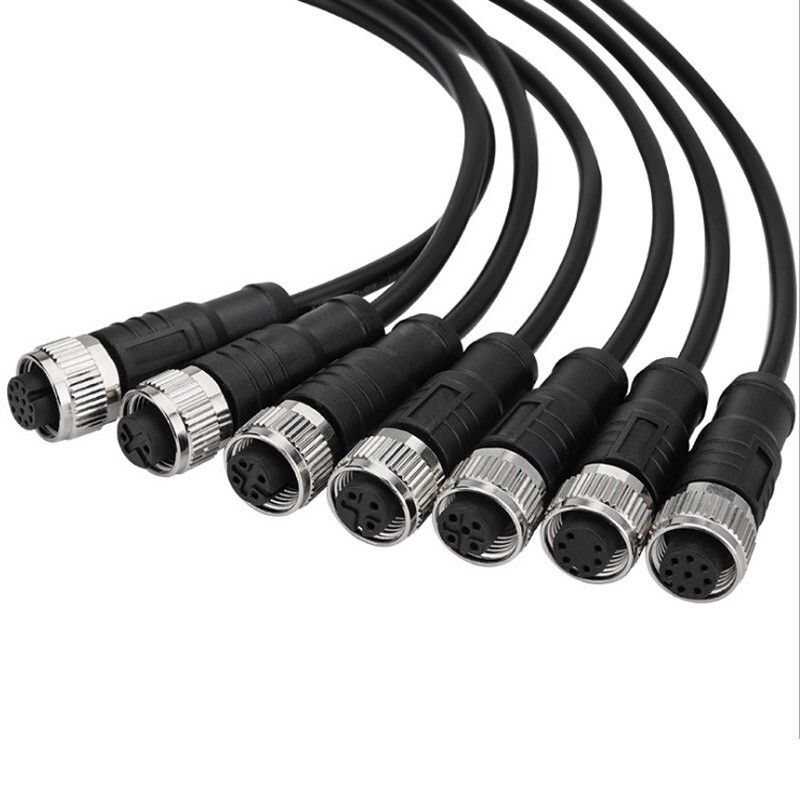
Choosing the right Ethernet cable is key to setting up a fast and reliable network in your home. Here’s a guide to help you decide between Cat5e, Cat6, and Cat6a cables.
Cat5e Cables:
These are the most basic and affordable cables, supporting speeds up to 1 Gbps over short distances (up to 100 meters). They’re great for general home use, especially if you only need reliable internet for browsing, streaming, or light gaming.
Cat6 Cables:
Cat6 cables offer higher speeds (up to 10 Gbps for short runs) and better shielding, making them ideal for homes where you need faster speeds for tasks like online gaming or streaming in 4K. They’re a step up from Cat5e and provide better performance over longer distances (up to 55 meters at 10 Gbps).
Cat6a Cables:
Cat6a cables are an upgraded version of Cat6, supporting 10 Gbps over longer distances (up to 100 meters). They have even better shielding, which makes them suitable for homes with heavy internet usage, smart home devices, or offices with a lot of network traffic.
When selecting the cable, think about your internet speed and what you’ll use the network for. For instance, if you plan to stream 4K content or play online games, Cat6 or Cat6a would be better suited for your needs.
| Cable Type | Speed (Max) | Distance (Max) | Ideal Use Case |
|---|---|---|---|
| Cat5e | 1 Gbps | 100 meters | General browsing, basic streaming |
| Cat6 | 10 Gbps | 55 meters | High-speed internet, gaming, 4K streaming |
| Cat6a | 10 Gbps | 100 meters | Heavy internet usage, smart homes, high-bandwidth tasks |
The category (Cat) of Ethernet cable indicates its speed and bandwidth capacity. Higher categories, like Cat6 and Cat6a, support faster speeds and longer distances, making them the go-to choice for modern homes that require robust network setups.
For most households, Cat6 offers the best balance of price and performance. However, if you anticipate needing higher speeds in the future (for example, for large file transfers or multiple users streaming simultaneously), investing in Cat6a might be worth it.
Installing Ethernet cables might seem easy, but there are some common mistakes many people make. Here’s a guide to avoid those errors and make the process smoother.
Not Planning Cable Routes Properly:
One of the biggest mistakes is not planning where the cables will go. Running cables without a clear plan can lead to wasted time, extra holes in your walls, or even dead zones where the signal is weak. It’s essential to map out your home and decide on the best route before you start drilling.
Incorrect Installation of Ethernet Connectors:
When attaching connectors, not following the correct wiring standard (T568A or T568B) is a common error. If the wires aren’t arranged properly, your Ethernet connection won’t work. Always double-check the wiring order before crimping connectors onto the cables.
Ignoring Safety Precautions and Damaging Existing Wiring:
Failing to turn off electricity or neglecting to check for existing wires in the wall can be dangerous. You could accidentally drill into electrical wires or plumbing, causing damage to your home. Always use a stud finder, and make sure the power is off when drilling near electrical installations.
Not Labeling Cables for Easy Troubleshooting:
After running the cables, many people forget to label each one. This makes troubleshooting a nightmare if something goes wrong later. A simple label on each cable can save hours of confusion when you need to find a problem or make adjustments.
| Common Mistake | How to Avoid It |
|---|---|
| Not Planning Cable Routes | Map out the layout before drilling or cutting |
| Incorrect Connector Installation | Follow T568A or T568B standards for wiring |
| Ignoring Safety Precautions | Turn off electricity and use a stud finder |
| Not Labeling Cables | Label each cable at both ends for easy reference |
Sometimes, even after a perfect installation, you might run into issues. Here’s how to troubleshoot and fix common Ethernet cable problems.
Check Cable Connections and Integrity:
The first thing to do is check if the cable is securely plugged into both ends. Loose connections can easily cause problems. Make sure the connectors are firmly attached to the Ethernet ports, and look for any signs of wear or fraying on the cable.
Inspect for Damage or Interference:
Inspect the entire length of the cable for any physical damage. Look for cuts, kinks, or bends, as these can disrupt signal flow. If the cable runs near power lines, appliances, or other electronics, electromagnetic interference could also be slowing things down.
How to Test Cables and Identify Issues:
A cable tester is your best tool for checking the integrity of your Ethernet cables. This device will check if all the wires inside the cable are connected correctly. If you don’t have a cable tester, you can swap out the suspect cable with a known working one to see if that solves the problem.
How to Secure Wall Plates and Ensure Proper Connection:
Loose wall plates can cause poor connections or even disconnections. Make sure the wall plates are tightly screwed in. If the Ethernet jack is loose or misaligned, unscrew the plate, realign the jack, and screw it back in place. Double-check that all the wiring inside the wall plate is properly connected.
Troubleshooting Issues with Wall-Mounted Ethernet Ports:
If you're still having trouble, it could be an issue with the wall-mounted Ethernet port. First, ensure the cable is properly connected at both ends. If the port is old or damaged, it might be worth replacing it. If the cable is fine, but you’re still getting weak or no signal, there could be a problem with the wiring inside the wall.
| Issue | Solution |
|---|---|
| No Connection or Slow Speeds | Check connections, replace damaged cables |
| Loose Wall Plates | Tighten screws, ensure proper connection |
| Faulty Wall-Mounted Ports | Realign or replace port |
Is running Ethernet cable worth the effort?Ethernet provides a reliable, high-speed connection, perfect for stationary devices and heavy internet use. It’s the best choice if you need stable internet for activities like gaming or streaming.Consider your home’s layout and internet needs. If you value long-term speed and reliability, Ethernet is the way to go. It offers consistent performance that Wi-Fi can’t always match.
A: Yes, but use outdoor-rated Ethernet cables designed for exposure to the elements. These cables are UV-resistant and have protective jackets for durability.
A: Yes, alternatives like adhesive cable clips or using existing holes can avoid drilling. These methods are ideal for non-invasive installations.
A: For optimal performance, Ethernet cable runs should be under 100 meters. Beyond that, signal degradation may occur, especially for Cat5e or Cat6 cables.
A: Check for loose connections, inspect the cable for damage, and test the connection using a cable tester. If necessary, replace faulty cables.
A: Yes, Ethernet cables can support both internet and phone services, as long as they’re properly configured with the required devices.
